The whole folder
Drop in individual images or add a folder. Include subfolders to find the images inside them, too.
 Avifo
AvifoFree. Made for your Mac.
Turn an entire folder of images into AVIF.
Choose your quality. Keep the animation.
All on your Mac.
macOS 26+ · Apple Silicon / Version 2.3.1
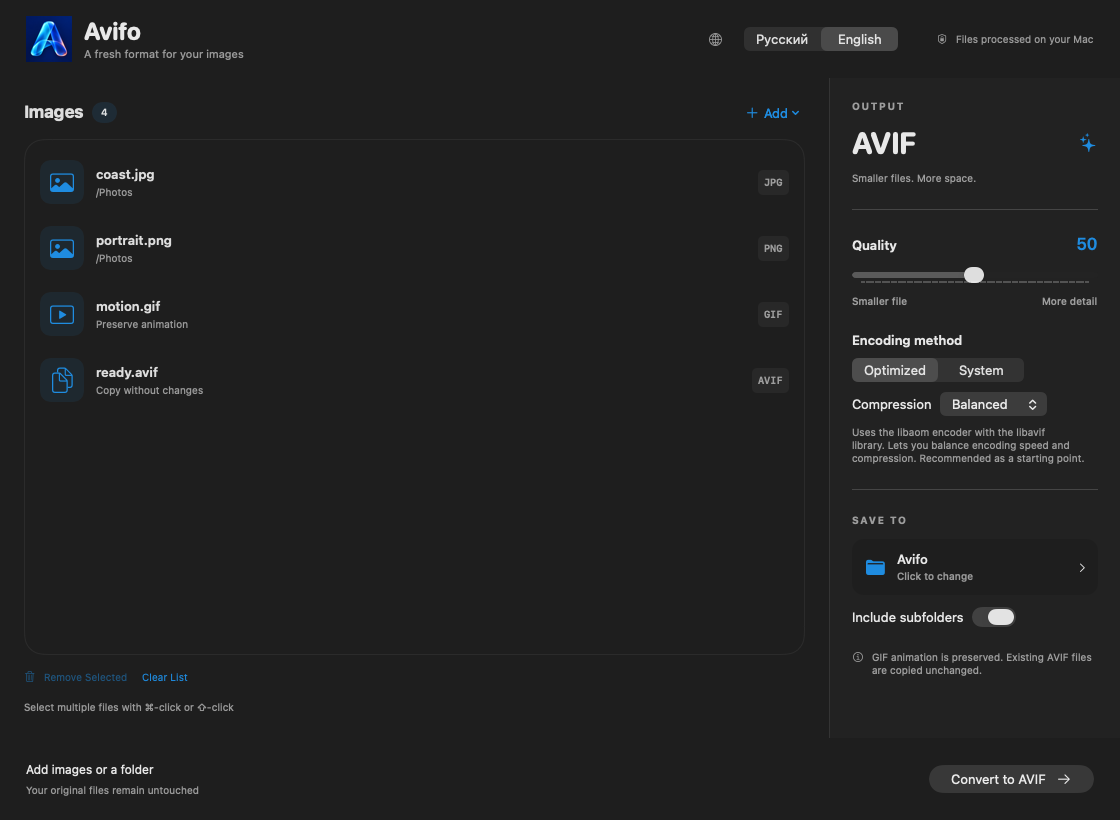
LESS REPETITION
Photos, graphics and animations. Add them together — Avifo takes care of the formats.
Drop in individual images or add a folder. Include subfolders to find the images inside them, too.
Animated GIFs become animated AVIFs. Your animation stays in motion — not just its first frame.
Existing AVIF files are copied to the output folder unchanged, without being converted again.
Remove one or several files, or clear the list before you start. Your original files stay safe on disk.
QUALITY, YOUR WAY
Aim for smaller files or preserve more detail. Start at quality 50 and check the results on a few images.
Balance encoding speed and compression efficiency. Choose Fast, Balanced or Thorough.
The built-in macOS encoder. Try both methods to compare speed, file size and image quality.
Animated GIFs use libaom in both modes. Output size depends on the image and your settings: conversion does not always make a file smaller.
RIGHT AT HOME ON MAC
Avifo follows your macOS appearance. Switch between English and Russian right in the main window.
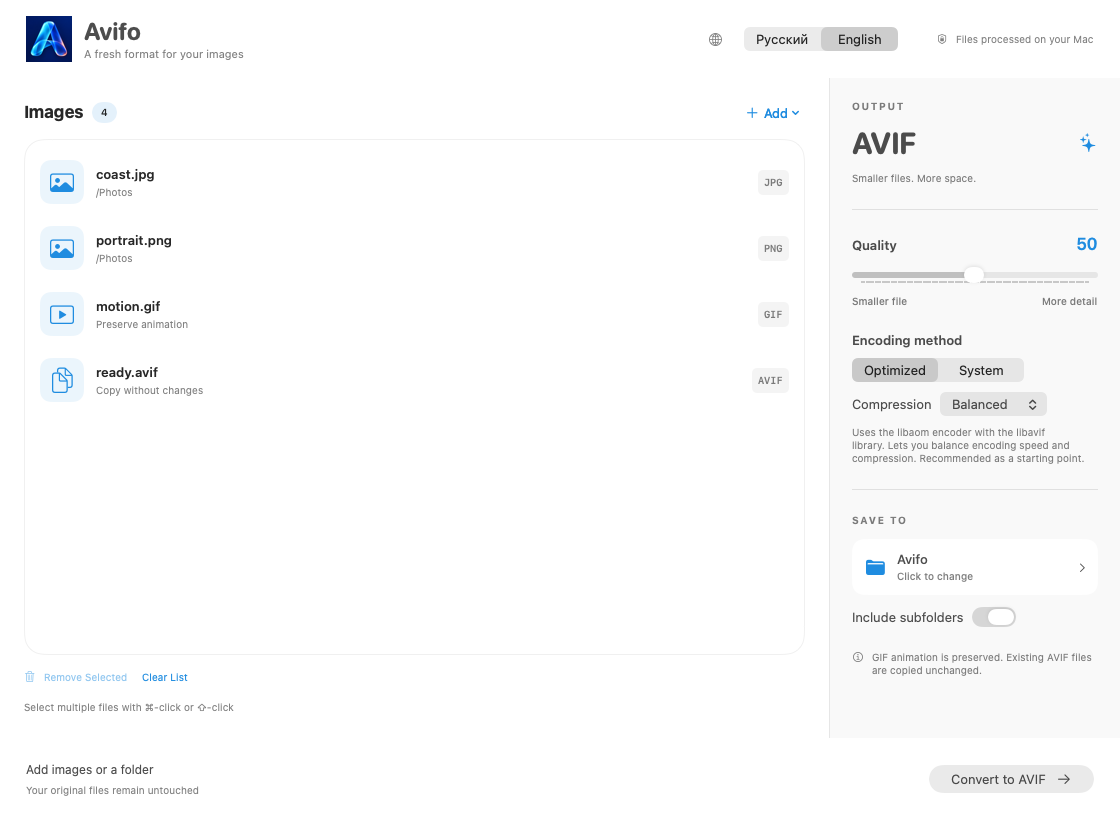
FROM FOLDER TO AVIF
Drop in your files or choose an entire folder. Remove anything you don’t need from the list.
Select an output folder, image quality and encoding method.
Start the conversion. Find the results in your chosen folder, with your originals left untouched.
No internet connection is needed for conversion. Avifo processes images on your Mac and never uploads them to a server.
An internet connection is used for the advertising banner and app updates.
The current version requires macOS 26 or later and Apple Silicon (an M-series chip). Intel-based Macs are not supported. You need free space for the app and converted files; large images and animations may require more memory.
Yes. Avifo is free to download and use, with no subscription or account required. The app may display an advertising banner.
JPG, JPEG, PNG, WebP and GIF. GIF animations are preserved in AVIF. Existing AVIF files are copied to the output folder unchanged.
In current versions of major browsers and on many modern mobile devices. Support depends on the operating system or app version. Compatibility with animated AVIF files may differ.
Yes. Click Stop: Avifo finishes the current image, then stops. Files already saved stay in the output folder. You can only edit the file list before processing starts.
Open the downloaded DMG and drag Avifo into Applications. Then launch it from that folder. Avifo checks for updates at launch; you can also choose Avifo → Check for Updates…. When a new version is available, click Install Update. Avifo will update and restart.
Download Avifo and turn your first folder into AVIF.
Download for macOSVersion 2.3.1 · DMG · macOS 26+ · Apple Silicon
Open the DMG → drag Avifo into Applications.